linuxbash

Just another HTMLy user

  • Posted on
    Featured Image
    Regular expressions (regex) are a powerful tool in Bash for searching, manipulating, and validating text patterns. By integrating regular expressions into Bash commands, you can streamline text processing tasks, making your scripts more flexible and efficient. Here's a guide on how to use regular expressions in Bash commands: 1. Using Regular Expressions with grep The grep command is one of the most common tools in Bash for working with regular expressions. It allows you to search through files or command output based on pattern matching. grep "pattern" filename Example: Search for a word in a file bash grep "hello" myfile.txt This will search for the exact word "hello" in myfile.txt.
  • Posted on
    Featured Image
    The Bash shell provides a history feature that records commands entered during previous sessions. This allows you to quickly recall, reuse, and manipulate commands from the past without having to type them again. The history feature is incredibly useful for streamlining your work in the terminal and for quickly repeating or modifying past commands. 1. What is Bash History? The Bash history refers to the list of commands that have been executed in the terminal. These commands are stored in a history file, which by default is located in the user's home directory as .bash_history. Location of history file: ~/.bash_history This file stores the commands you enter, allowing you to recall or search them later.
  • Posted on
    Featured Image
    Environment variables in Bash are variables that define the environment in which processes run. They store system-wide values like system paths, configuration settings, and user-specific data, and can be accessed or modified within a Bash session. Environment variables are essential for: Configuring system settings. Customizing the behavior of scripts and programs. Storing configuration values for users and applications. Here’s an overview of how to work with environment variables in Bash. 1. Viewing Environment Variables To see all the current environment variables, use the env or printenv command: env or printenv This will print a list of all environment variables and their values.
  • Posted on
    Featured Image
    Bash scripting is a way to automate tasks in Linux using Bash (Bourne Again Shell), a widely used shell on Unix-like systems. This guide introduces the basics of Bash scripting, enabling you to create and execute your first scripts. 1. What is a Bash Script? A Bash script is a plain text file containing a series of commands executed sequentially by the Bash shell. It’s useful for automating repetitive tasks, system administration, and process management. A Bash script is a text file. It typically has a .sh extension (e.g., myscript.sh), though this isn’t mandatory. The Shebang Line: The first line of a Bash script starts with a shebang (#!), which tells the system which interpreter to use. Example: #!/bin/bash 3.
  • Posted on
    Featured Image
    The Bash prompt is the text that appears in your terminal before you type a command. By default, it displays minimal information, such as your username and current directory. Customizing your Bash prompt can enhance productivity by providing quick access to important information and making your terminal visually appealing. What is the Bash Prompt? The Bash prompt is controlled by the PS1 variable, which defines its appearance. For example: PS1="\u@\h:\w\$ " \u: Username. \h: Hostname. \w: Current working directory. \$: Displays $ for normal users and # for the root user. Enhanced Information: Display details like the current Git branch, exit status of the last command, or time.
  • Posted on
    Featured Image
    Bash, short for Bourne Again Shell, is a command-line interpreter widely used in Linux and Unix systems. It's both a powerful scripting language and a shell that lets you interact with your operating system through commands. Whether you're an IT professional, a developer, or simply someone curious about Linux, understanding Bash is a critical first step. What is Bash? Bash is the default shell for most Linux distributions. It interprets commands you type or scripts you write, executing them to perform tasks ranging from file management to system administration. Control and Efficiency: Automate repetitive tasks and streamline workflows. Powerful Scripting: Write scripts to manage complex tasks.
  • Posted on
    Featured Image
    The change in popularity of open-source operating systems, particularly in the wake of Red Hat's decision to shift CentOS to an upstream provider (CentOS Stream), has been significant. This decision fundamentally altered the landscape of enterprise Linux distributions and led to the rise of alternative distributions such as AlmaLinux and Rocky Linux. Here's a closer look at the changes in popularity, the rationale behind them, and why people should consider switching to distributions like AlmaLinux or Rocky Linux.
  • Posted on
    Featured Image
    As a system administrator, understanding the nuances of each Linux desktop environment is crucial when making an informed decision about which to deploy. Each environment offers distinct advantages in terms of system resources, customization, user experience, and compatibility with various distributions and use cases. Below is a breakdown of what system administrators should know about each of these desktop environments and window managers, along with insights into their popularity and relevance in the broader Linux ecosystem. What to Know: GNOME is known for its simplicity and modern look. It prioritizes a clean, consistent user interface and workflow, often regarded as the "default" Linux desktop.
  • Posted on
    Featured Image
    Package managers are essential tools in modern operating systems (OS) that help automate the process of installing, updating, and removing software packages. These tools manage the software installed on a system, making it easier for users and administrators to keep their systems up-to-date with the latest versions of software. They provide a streamlined and efficient way to manage dependencies, handle software updates, and ensure system stability by preventing compatibility issues.
  • Posted on
    Featured Image
    The terms Bash and SH refer to two different types of shell environments used in Linux and other Unix-like operating systems. While they both serve the purpose of interacting with the system through command-line interfaces (CLI), they have notable differences in terms of features, compatibility, and functionality. SH (Bourne Shell): The Bourne shell, commonly referred to as sh, was developed by Stephen Bourne at AT&T Bell Labs in the 1970s. It became the standard shell for Unix systems, providing basic functionalities such as file manipulation, variable management, and scripting. Its design focused on simplicity and portability, making it a versatile tool for system administrators and users alike.
  • Posted on
    Featured Image
    Let's explore each of the programming languages and their interpreters in detail. We'll look into the context in which they're used, who typically uses them, what they are used for, and the power they offer. Additionally, I'll suggest starting points for testing each language, and provide an explanation of their benefits and popularity. Context & Usage: Who uses it: System administrators, DevOps engineers, and developers working in Linux or Unix-like environments. What for: Bash is the default shell for Unix-like systems. It’s used for writing scripts to automate tasks, managing system processes, manipulating files, and running system commands.
  • Posted on
    Featured Image
    If you're looking to dive deep into Bash and become proficient with Linux command-line tools, here are three highly regarded books that are both informative and widely acclaimed: The Linux Command Line: A Complete Introduction by William E. Shotts, Jr. Why it’s great: This book is a fantastic starting point for beginners who want to understand the basics of Linux and the command line. It covers Bash fundamentals, command syntax, file system navigation, and more. Shotts takes a clear, approachable, and comprehensive approach, gradually building up your skills. Key Features: Clear explanations of common command-line tools and Bash concepts. Emphasis on hands-on practice with examples and exercises.
  • Posted on
    Featured Image
    5 Fun Things You Can Do With Linux Bash
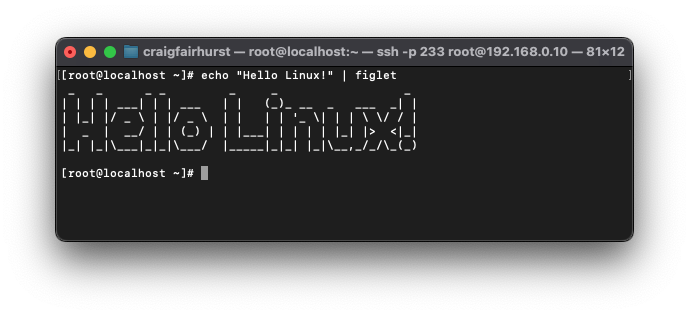
    Linux Bash (Bourne Again Shell) is incredibly versatile and fun to use. Here are 10 enjoyable things you can do with it. Use PS1 to create a custom, colorful prompt that displays the current time, username, directory, or even emojis. export PS1="\[\e[1;32m\]\u@\h:\[\e[1;34m\]\w\[\e[0m\]$ " Play Retro Games Install and play classic terminal-based games like nethack, moon-buggy, or bsdgames. Use tools like toilet, figlet, or cowsay to create text-based art. echo "Hello Linux!" | figlet Create Random Passwords Generate secure passwords using /dev/urandom or Bash functions. tr -dc 'A-Za-z0-9' < /dev/urandom | head -c 16 Use curl to fetch weather data from APIs like wttr.in. curl wttr.
  • Posted on
    Featured Image
    Processes In Linux
    A computer doing more than one thing at a time is using processes, these require resources, CPU time, memory and access to other devices like CD/DVD/USB drives, etc. Each process is allocated an amount of system resources to perform its function which is controlled by the operating system whose job it is to facilitate these processes. Signals have an important part to play on the interaction of the processes, usually these send exit signals and other information to each other, or to itself. Programs, Processes, and Threads A program is a set of instructions to be carried out which may local data such as information for output to the terminal via read or external data which may come from a database.
  • Posted on
    Featured Image
    After reading this document you should be able to identify why Linux defines its filesystem hierarchy in one big tree and explain the role of the filesystem hierarchy standard, explain what is available at boot in the root directory (/), explain each subdirectory purpose and typical contents. The aim here is to be able to create a working bash script which knows where to put its different data stores including lockfiles, database(s) or temporary files; including the script itself. One Big Filesystem As with all Linux installations there is a set protocol to follow which could be looked at as one big tree starting from its root, /.
  • Posted on
    Featured Image
    When it happens that your VPS is eating data by the second and there is disk read/write issues one port of call you are bound to visit is searching and identifying large files on your system. Now, you would have been forgiven for thinking this is a complicated procedure considering some Linux Bash solutions for fairly simple things, but no. Linux Bash wins again! du -sh /path/to/folder/* | sort -rh Here, du is getting the sizes and sort is organising them, -h is telling du to display human-readable format. The output should be something like this: 2.3T /path/to/directory 1.8T /path/to/other It does take a while to organise as it is being done recursively however given 3-5mins and most scenarios will be fine.
  • Posted on
    Featured Image
    So yeah, getting used to Bash is about finding the right way to do things. However, learning one-liners and picking up information here and there is all very useful, finding something you don't need to Google in order to recall is extremely important. Take the case of recursive find and replace. We've all been there, it needs to be done frequently but you're either a) scared or b) forgetful. Then you use the same snippet from a web resource again and again and eventually make a serious error and boom, simplicity is now lost on you! So here it is, something you can remember so that you don't use different methods depending on what Google throws up today. grep -Rl newertext .
  • Posted on
    Featured Image
    In a modern world where cyber-warfare is common place and every-day users are targets from organised crime, it goes without saying that you are likely to run into problems rather quickly if you don't use every available means of security. The scope of this article is to connect via SSH Keys however you should also be doing some other more mundane tasks like encrypting the connection (preferably with a VPN on your router) and using altered ports, plus limiting access to SSH users, if you have them. So what is the safest way to connect to your remote Linux OS distribution, by command line? Well quite simply, it is done with SSH Keys which you generate so that the connection can be established.
  • Posted on
    Featured Image
    Linux Bash (Bourne Again Shell) is the default command-line interface for most Linux distributions and macOS. For new users, it might feel overwhelming at first, but once you understand the basics, Bash can become a powerful tool for managing your system, automating tasks, and improving productivity. In this quick guide, we’ll walk you through the essentials of Bash in under 30 minutes. Whether you're a beginner or just looking to refresh your knowledge, this guide will help you feel comfortable with the Linux command line. Bash is a command-line interpreter that allows users to interact with their operating system by entering text-based commands. It's a shell program that interprets and runs commands, scripts, and system operations.
  • Posted on
    Featured Image
    Linux is an open-source Operating System which is released with different flavours (or distros) under the guise of free-to-use software. Anybody can download and run Linux free-of-charge and with no restraints on the end-user; you could release, distribute and profit from Linux with relative ease with no worry of associated cost or licensing infringement. It is fair to say Linux has formidably and profoundly revolutionised and defined the process of interacting with electronic devices. You can find Linux in cars, refrigerators, televisions and of course, as a desktop-grade or headless operating system. Once you become accustomed to Linux, you quickly see just why all the top 500 supercomputers all run Linux.
  • Posted on
    Featured Image
    If you’ve ever used a Linux operating system used on most Virtual Private Servers, you may have heard of bash. It’s a Unix shell that reads and executes various commands. Bash, short for Bourne-Again Shell, is a Unix shell and a command language interpreter. It reads shell commands and interacts with the operating system to execute them. Why Use Bash Scripts? Bash scripts can help with your workflow as they compile many lengthy commands into a single executable script file. For example, if you have multiple commands that you have to run at a specific time interval, you can compile a bash script instead of typing out the commands manually one by one. You then execute the script directly, when it’s necessary.